
Every call and meeting you log on a lead lands in one timeline, so the next person to open the
record can see what has already been said without asking.
Log an activity
- Open Partners → Leads and click the lead.
- In the side panel, select CRM Activities.
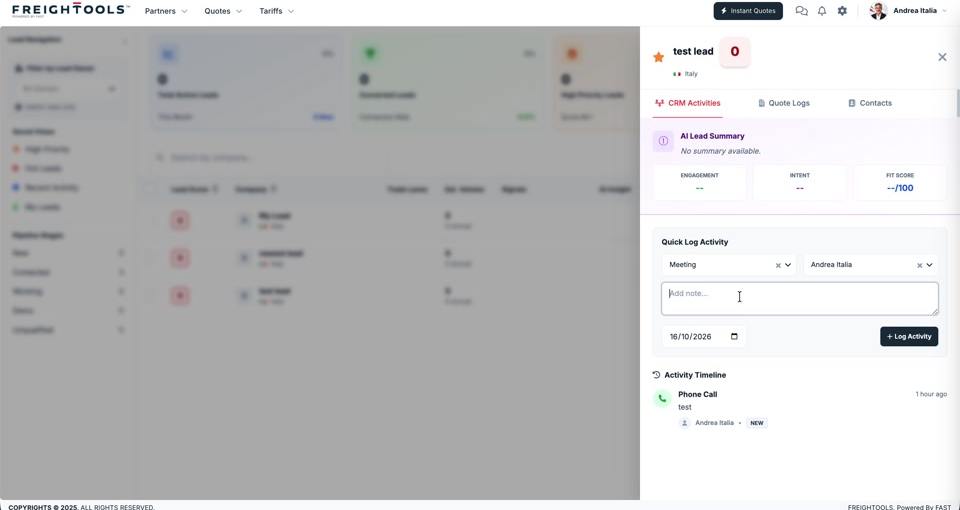
- Under Quick Log Activity:
- Choose the activity type — for example Meeting or Phone Call.
- Choose the user the activity belongs to.
- Type a note.
- Set the date of the activity.
- Click Log Activity.
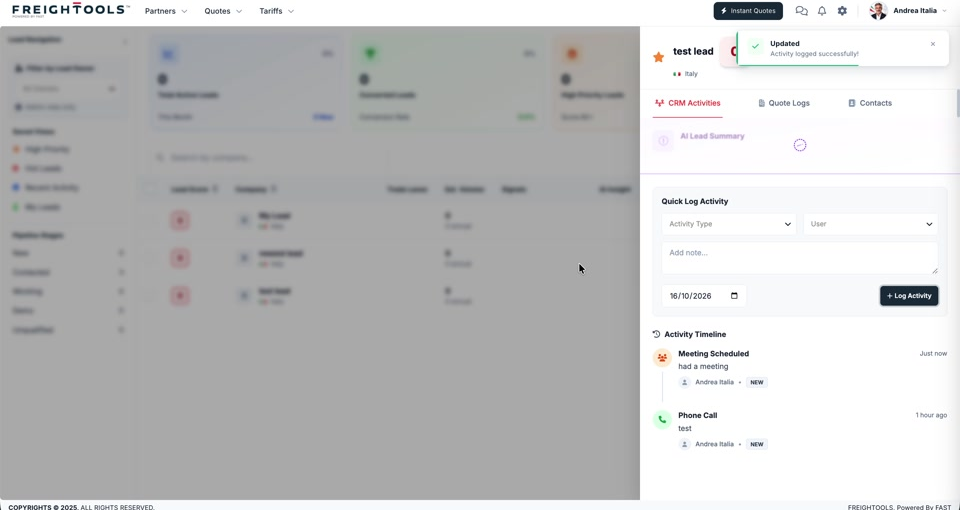
Freightools confirms with Activity logged successfully, the form clears itself for the next
entry, and the activity appears at the top of the Activity Timeline marked NEW.
Note: The date is yours to set, so you can log a call after the fact and still have it sit
in the right place in the timeline.
Read the timeline
Each entry shows the activity type with its icon, your note, who logged it, and how long ago.
The newest is at the top.
The AI Lead Summary
Above Quick Log Activity sits the AI Lead Summary, with an Engagement score, an
Intent score and a Fit Score out of 100. On a lead with no history yet it reads
No summary available and the scores show as dashes — logging activities and quotes is what
gives it something to work from.