
This article walks you through inviting a person at one of your customers to the Customer Portal: setting the customer up for the portal, adding the contact, and clicking Invite Partner. It also covers what Freightools asks you when you invite a company for the first time and what the invitation email says. It does not cover the portal's own rules, branding and service mixes — see How to configure Customer Portal rules, branding and service mixes — or managing portal users and roles afterwards — see How to manage the Customer Portal in Freightools.
Before you start
- Check that the portal is switched on for your company. Open your user menu (your name, top right) → Company Settings → Company → Advanced Settings. Under Customer Portal, the setting Customer Portal Enabled carries the badges Super Admin Only and Platform Controlled. The screen says: "Only Freightools platform administrators can toggle this setting." If it is off for your company, ask your Freightools contact to switch it on.
- You know who the customer's administrator is. The first person you invite for a customer company must be that company's administrator. Have their email address ready.
- The contact has an email address. Email is a required field on a partner contact.
Step 1 — Set the partner up as a portal customer
The invitation starts from the customer's partner record. The portal checkbox is only shown once the partner is marked as a customer.
For a customer that already exists:
- Go to Partners → Customers.
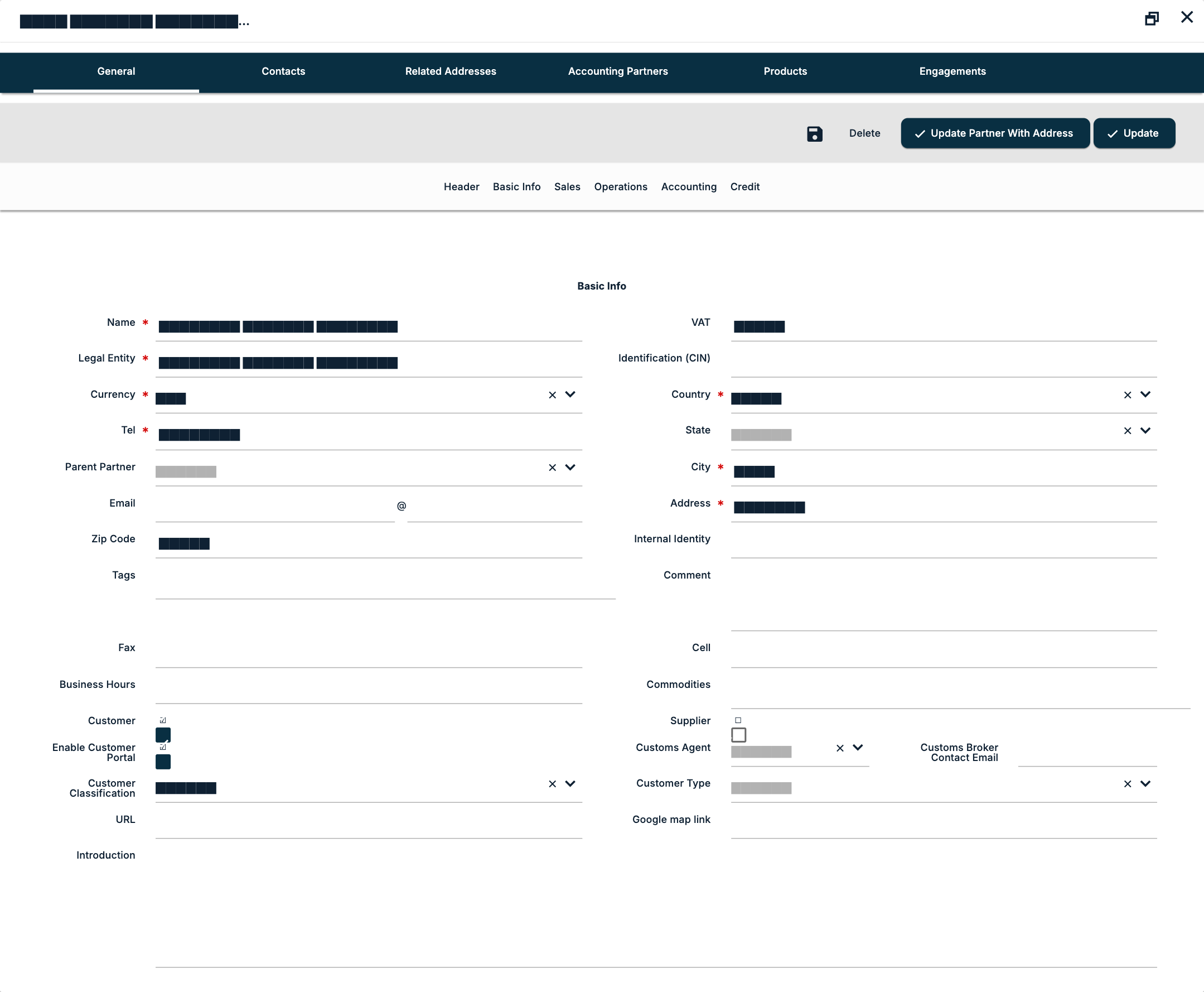
- Find the customer and click the pencil in the Edit column. The editor Edit Partner opens on the General tab.
- In the Basic Info section, tick Customer if it is not ticked yet.
- Tick Enable Customer Portal. It appears beside Customer only when Customer is ticked.
- Click Update.
For a new customer:
- Go to Partners → Customers and click New Partner.
- Fill in the required fields: Name, Legal Entity, Currency, Country, Tel, City and Address.
- In Basic Info, tick Customer, then tick Enable Customer Portal.
- Click Save Changes.
The Contacts tab cannot be used until the partner has been saved once. After saving, open the partner again from the Partners list with the pencil.
Step 2 — Add the contact
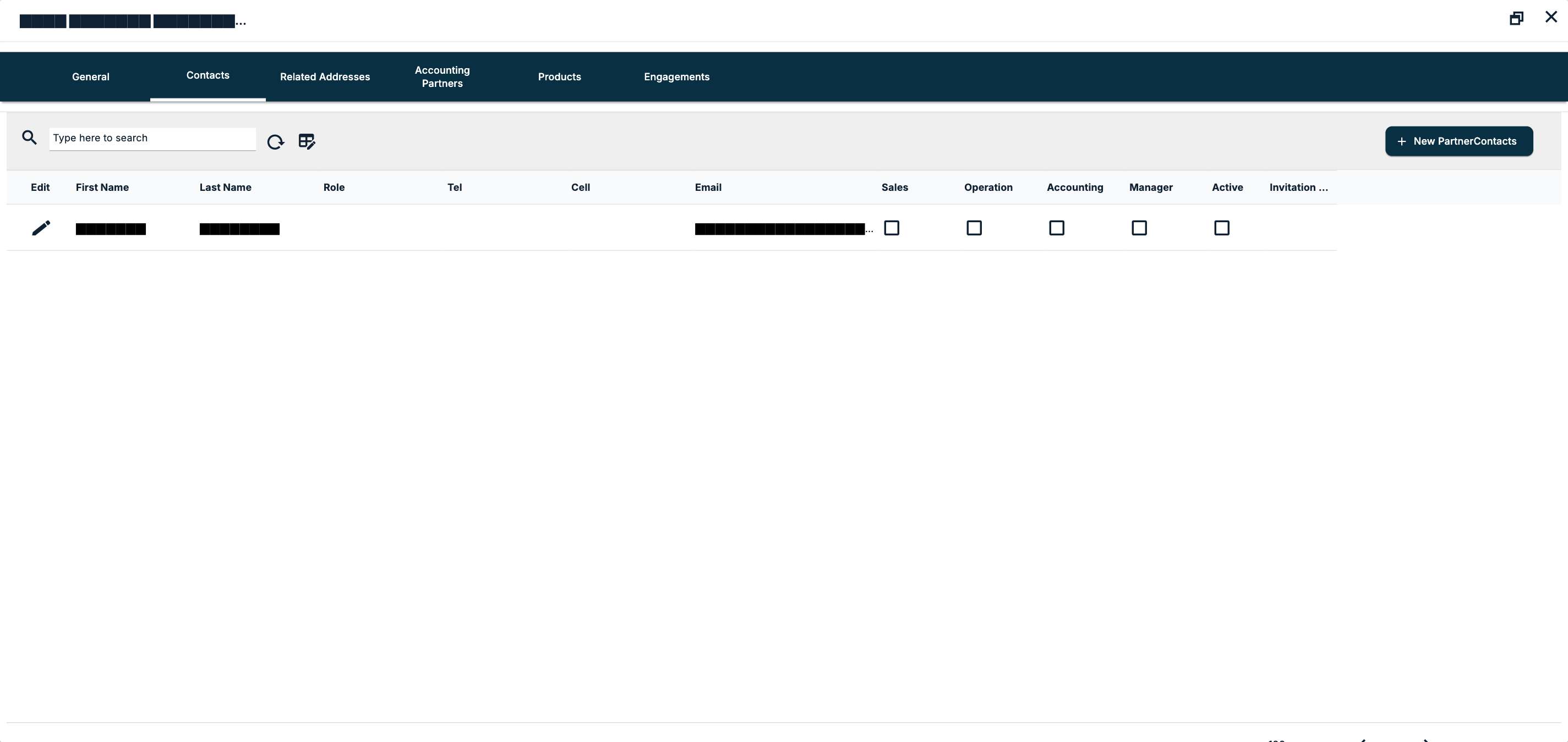
- In the partner editor, open the Contacts tab.
- If the person is not listed, click New PartnerContacts.
- Fill in First Name, Last Name and Email — all three are required. Add Role, Tel, Cell and the other details you have.
- Save the contact.
The Invite Partner button is not available on a contact that has not been saved yet. Once it is saved, open it again with the pencil in the Contacts grid.
Step 3 — Send the invitation
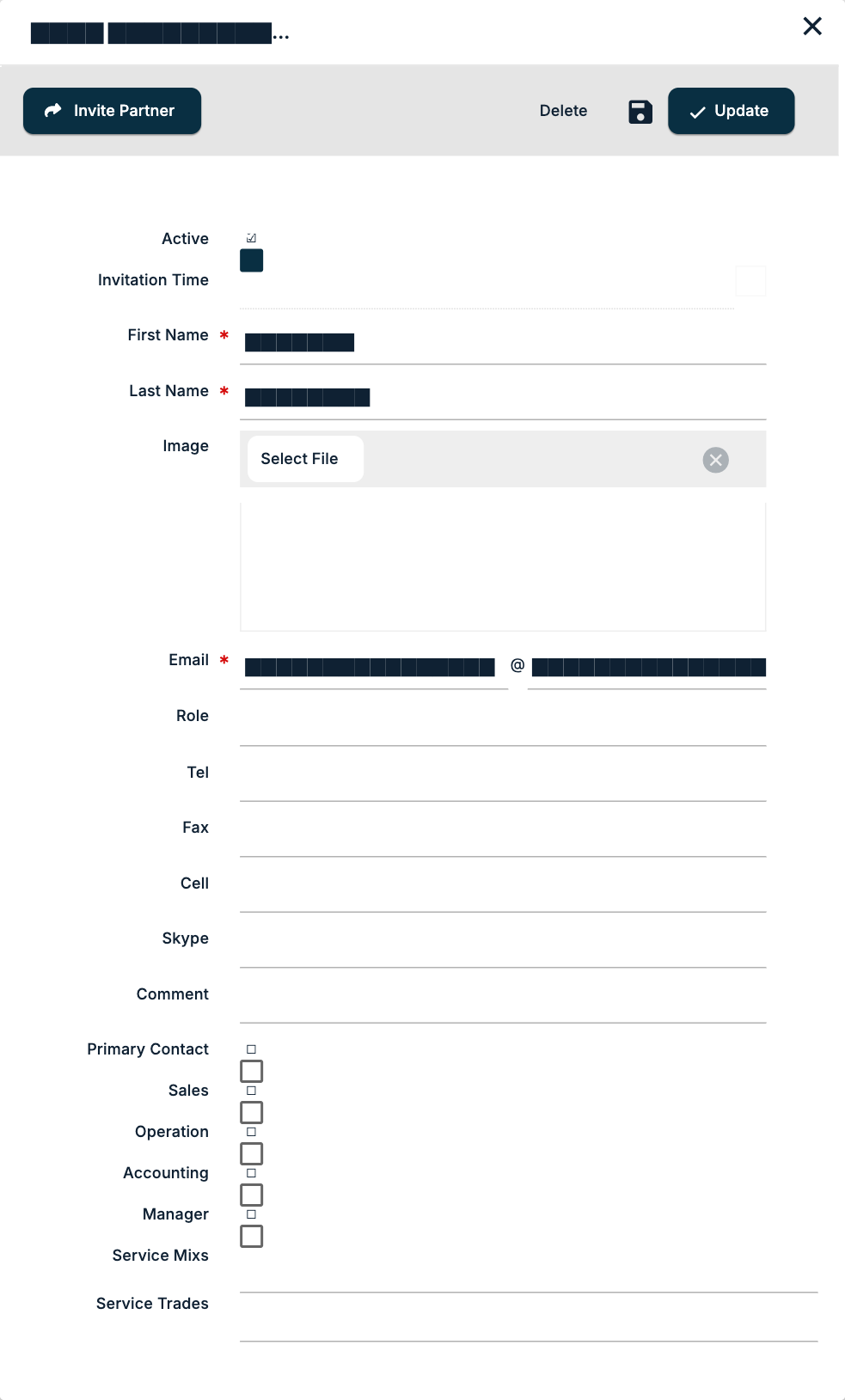
- On the Contacts tab, click the pencil next to the contact. The dialog Edit PartnerContacts opens.
- Click Invite Partner, at the left of the dialog's toolbar. Delete, Apply Changes (the disk icon) and Update are on the right.
What happens next depends on whether the customer's company is already on the portal.
Inviting a company for the first time
When the company has no portal account yet, Freightools opens the dialog Invite Administrator Partner Contact before anything is sent. Under the heading "Pay Attention!!!" it explains that you are about to invite a new company to use your system, that the company will be able to log in and view your portal, and that the first contact invited must be the company administrator. It then asks you to re-insert the company administrator's email:
| Field | What to enter |
|---|---|
| Administrator Email | The email address of the customer's company administrator. |
| Confirm Administrator Email | The same address again. |
Confirm the dialog to send the invitation.
Inviting a company that is already on the portal
Freightools sends the invitation straight away. For an additional person at a company that already has an administrator, the product reports: "A invitation request was successfully sent to partner contact administrator."
The messages you can see
| Message | When |
|---|---|
| "Your invitation was successfully sent to the partner contact." | The invitation was sent to the contact. |
| "A invitation request was successfully sent to partner contact administrator." | The request went to the customer's portal administrator. |
| "Invitation sent successfully. You can send one Invitation every 24 hours." | You clicked Invite Partner again within 24 hours of the last invitation to this contact. |
| "Failed to invite partner contact. Please contact technical support." | The invitation could not be sent. Contact Freightools support. |
What your customer receives
The contact receives an email with the subject "Activate Your … Customer Portal Account", with a company name in place of the dots. The email is titled "Customer Portal Invitation" and lists what the portal offers:
- Shipment Tracking and Documentation
- Quick Request RFQ
- Company Live News Feed
- Quick Discussions
- Bookings Management
The contact clicks Company Activation in the email to activate the account. The email states: "The URL will expire in 24 hours for security reasons."
A person added to a company that already uses the portal receives a different email, with the subject "Additional User Added to your Organization" and the title "Activate new company user".
See when a contact was invited
- The Contacts grid on the partner has an Invitation Time column.
- The contact dialog shows the same Invitation Time as a read-only field.
- Settings → BI → Logs → Customer Logins opens Customers Logins, a list with the columns User, User Email, Company and Activity Date.
If something goes wrong
Invite Partner is greyed out. The button is unavailable when:
- the contact is new and has not been saved yet — save it and open it again;
- the contact has been deleted;
- the contact is not attached to a partner;
- the contact is already registered and active as a portal user — there is nothing to invite.
Enable Customer Portal is not on the screen. Tick Customer in Basic Info first; the portal checkbox appears beside it.
You invited a contact before enabling the portal. The invitation still goes out: clicking Invite Partner enables the portal for the customer.
The Contacts tab cannot be opened. The partner has not been saved yet. Save it, then open it again from the list.
"You can send one Invitation every 24 hours." An invitation already went to this contact in the last 24 hours. Check Invitation Time on the contact and try again once 24 hours have passed.