
The Customer Portal is the self-service site where your customers search rates, request quotes
and accept offers. How it behaves is configured from
Settings → Company → Advanced Settings, in the Customer Portal half of the dialog.
Note: Customer Portal Enabled is marked Super Admin Only and
Platform Controlled. Only Freightools platform administrators can switch the portal on or
off. Everything else on this page is yours to set.
Quoting rules
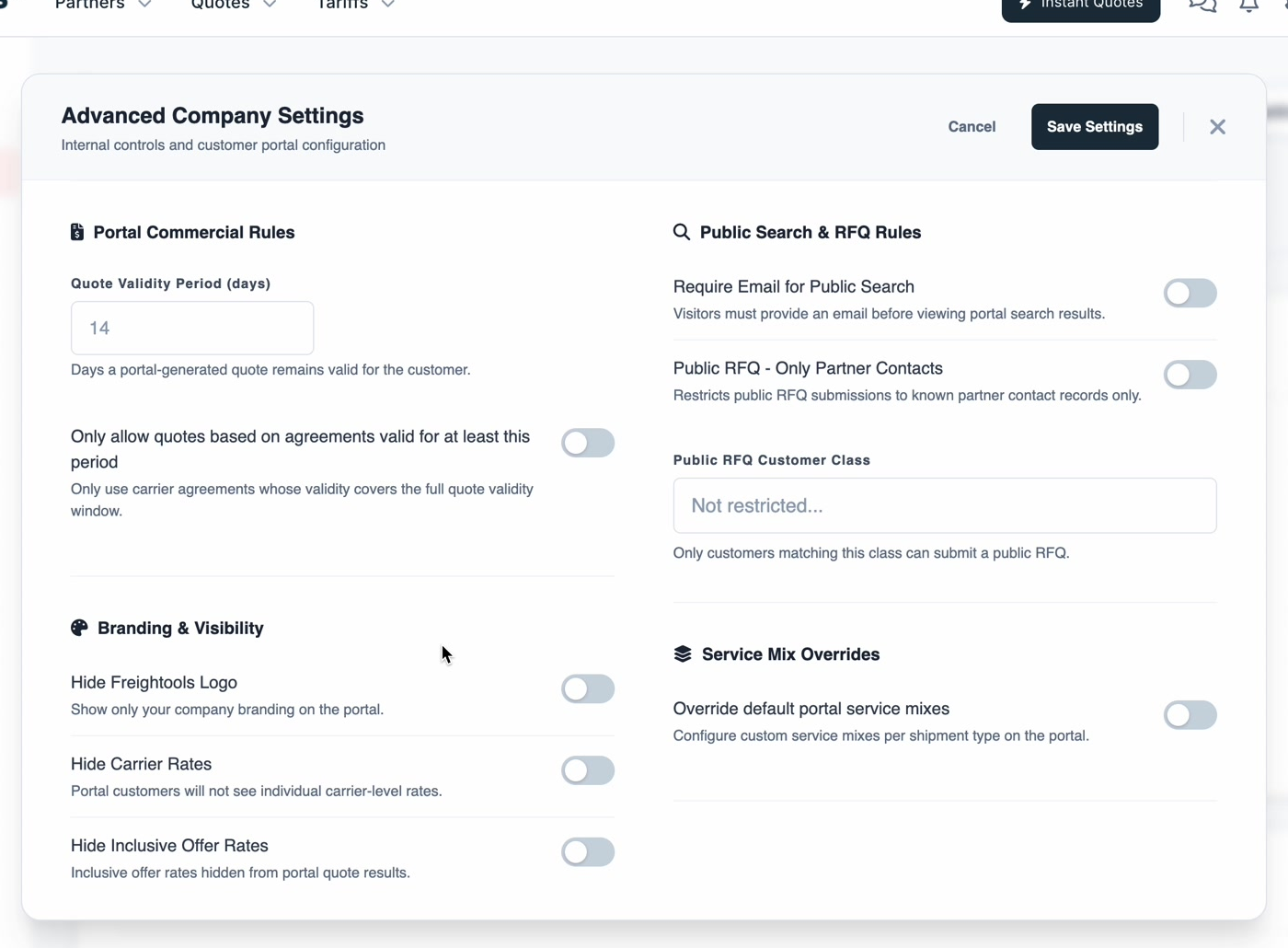
Quote Validity Period (days) is how long a quote generated in the portal stays valid for the
customer, for example 14.
Only allow quotes based on agreements valid for at least this period is off by default. Turn
it on to use only carrier agreements whose validity covers the whole quote-validity window — so a
quote you give for 14 days cannot be built on an agreement that expires in 3.
Who may search and request
| Setting | What it does |
|---|---|
| Require Email for Public Search | Visitors must give an email address before they see portal search results. |
| Public RFQ - Only Partner Contacts | Restricts public RFQ submissions to contacts that already exist on your partner records. |
| Public RFQ Customer Class | Only customers in the class you pick may submit a public RFQ. Leave it Not restricted to allow all of them. |
What your customers see
| Setting | What it hides |
|---|---|
| Hide Freightools Logo | Shows only your own branding on the portal. |
| Hide Carrier Rates | Portal customers do not see individual carrier-level rates. |
| Hide Inclusive Offer Rates | Inclusive offer rates are hidden from portal quote results. |
Service mixes per shipment type
A service mix decides which services the portal quotes for a given shipment type. By default
every type uses the platform default.
- Turn on Override default portal service mixes. A panel of selectors appears.
- Choose the service mix for each type: Default, Fast Quotation, Ocean Container,
Ocean LCL, Air, Road FTL and Road LTL. - Click Save Settings.
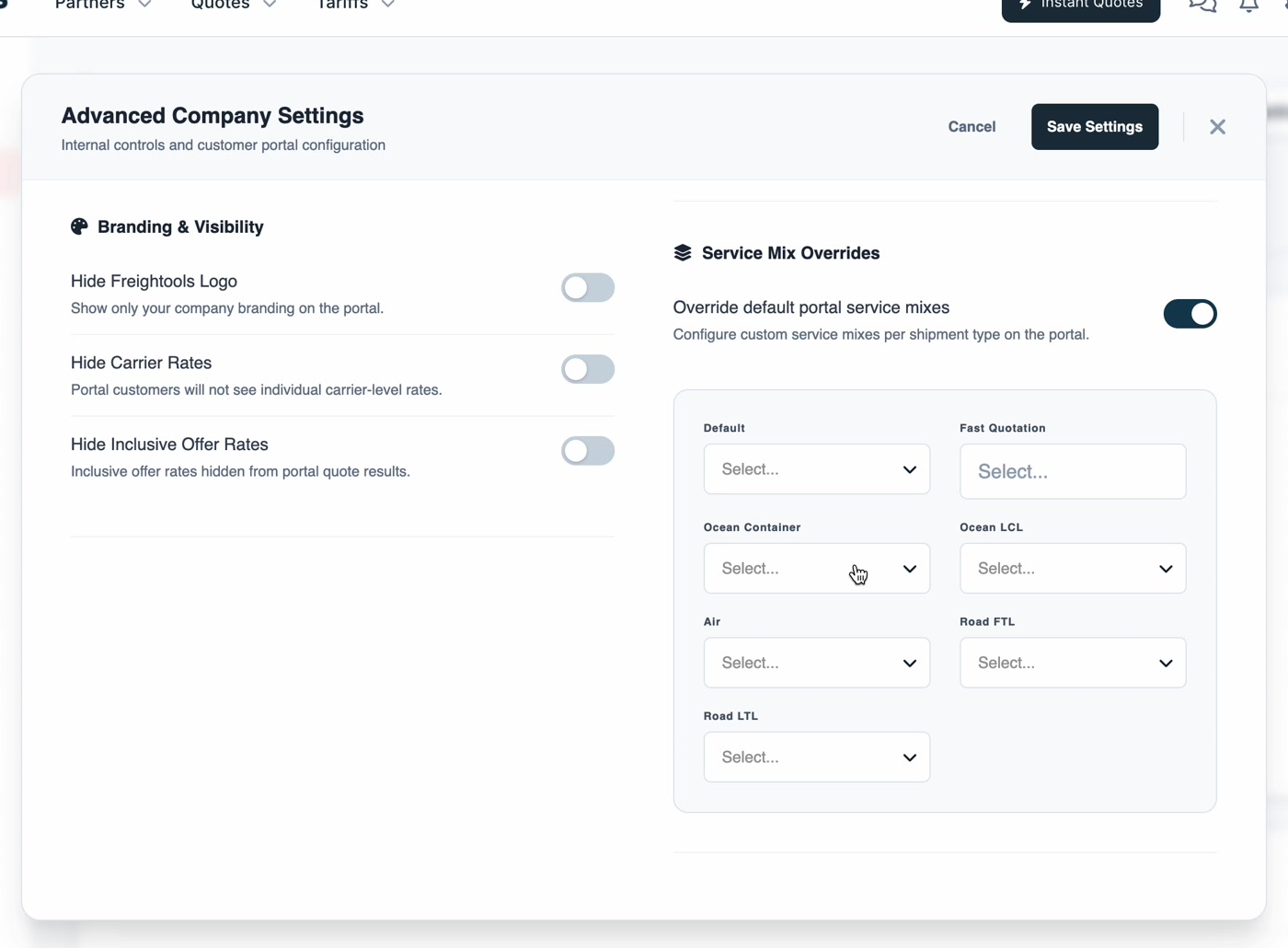
Turning the override off again returns every type to the platform default.