
The Basic Information tab is the framework of a Customer Shipment (CS): the route, the service, the incoterm, the house bill details, the dates and the parties. This article goes through its four sections — General, Shipment, Partner Sender and Partner Receiver — field by field. Creating the CS itself is covered in How to create a CS (customer shipment) in Freightools.
Before you start
- Open the CS from Shipments → Customer Shipments with the pencil in the Edit column, or create one with New Customer Shipment.
- Required fields carry a *. An empty required field shows the tooltip "This field is required. Please fill it in."
- Choose the Service Mix first. Service Type is filled from it, and Pickup Service and Delivery Service have no options until a Service Mix is chosen.
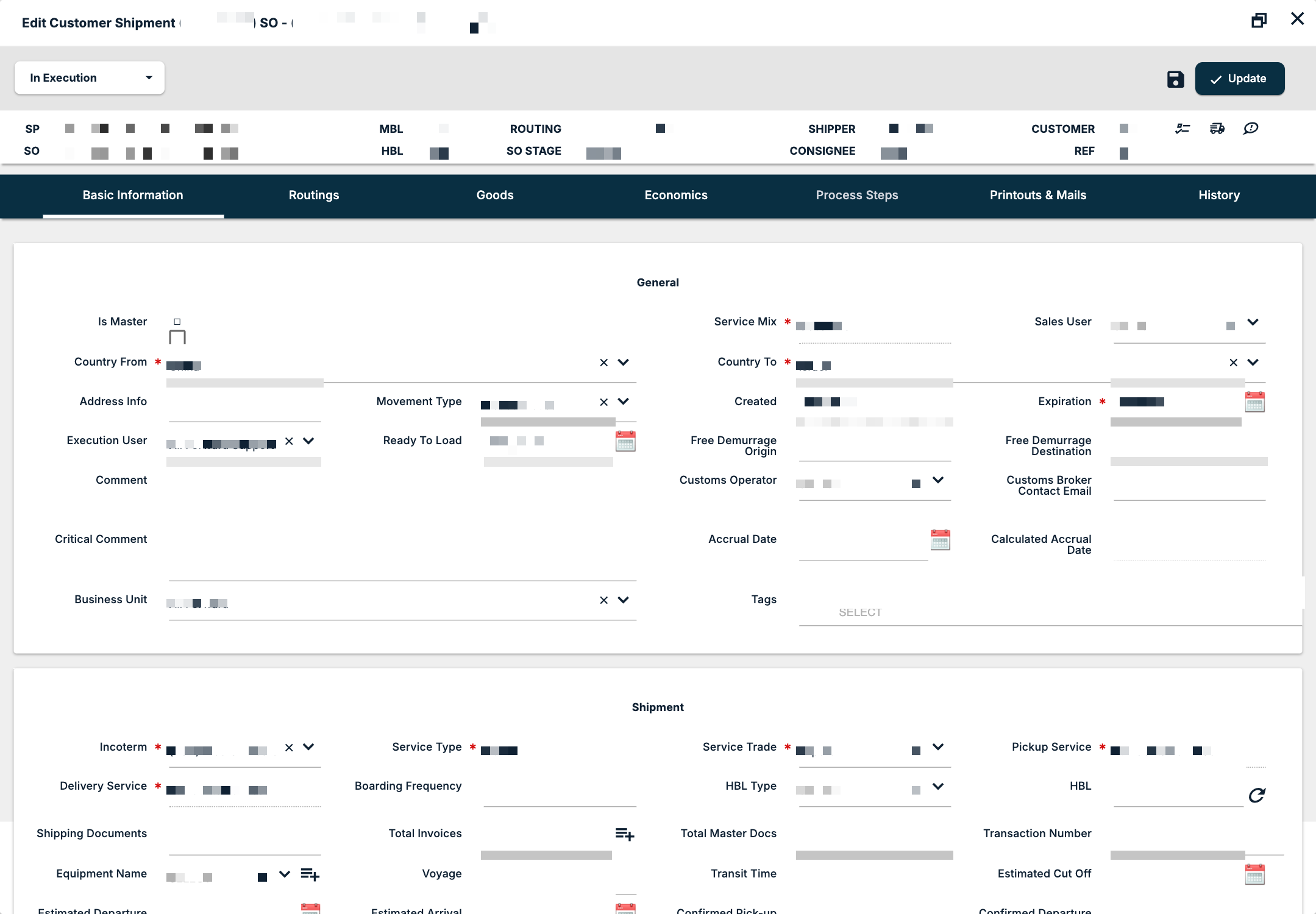
General
| Field | What to enter |
|---|---|
| Is Master | Tick for a master CS. |
| Service Mix * | The mode and load type, for example Ocean FCL or Air Service. Locked after the CS is saved. |
| Sales User | The salesperson for the shipment. |
| Country From and Country To | The countries of origin and destination. |
| Address Info | Free text about the addresses. |
| Movement Type | House-House, House-Pier, Pier-House or Pier-Pier. |
| Created | Read-only: the date the CS was created. |
| Expiration * | Starts at one month after creation on a new CS. |
| Execution User | The person running the shipment. Starts as the user who creates the CS. |
| Ready To Load | When the cargo is ready. |
| Free Demurrage Origin and Free Demurrage Destination | The free demurrage at each end. |
| Comment and Critical Comment | Notes on the shipment. |
| Customs Operator | The customs partner. Inactive partners are marked [NOT ACTIVE]. |
| Customs Broker Contact Email | The customs broker's email. |
| Accrual Date | The accrual date you set. Calculated Accrual Date beside it is read-only. |
| Business Unit | The business unit the shipment belongs to. |
| Tags | Labels for the shipment. |
The Business Unit lock
Business Unit is locked once an approved invoice is bound to the CS. Set it correctly before invoicing.
Shipment
| Field | What to enter |
|---|---|
| Incoterm * | (EXW) Ex Works, (FCA) Free Carrier, (FAS) Free Alongside Ship, (FOB) Free On Board, (CFR) Cost and Freight, (CIF) Cost, Insurance and Freight, (CPT) Carriage Paid To, (CIP) Carriage and Insurance Paid To, (DAT) Delivered at Terminal, (DAP) Delivered at Place, (DDP) Delivered Duty Paid, (DPU) Delivered at Place Unloaded. |
| Service Type * | Read-only, filled from the Service Mix (for example Ocean). |
| Service Trade * | Export, Import, Domestic or Cross. |
| Pickup Service and Delivery Service | For example Full Container Load. Locked after the CS is saved. |
| Boarding Frequency | How often the service sails or departs. |
| HBL Type | Original, Waybill or Telex. |
| HBL | The house bill number. On an Air CS the field is labelled HAWB. |
| Shipping Documents | Free text. |
| Total Invoices | The number of invoices, with a + button. |
| Total Master Docs | The number of master documents. |
| Transaction Number | The carrier transaction number. |
| Equipment Name | The vessel, chosen from a list; Define New adds one. |
| Voyage and Transit Time | The voyage number and the transit time. |
| Estimated Cut Off, Estimated Departure, Estimated Arrival | Your estimated dates. |
| Confirmed Pick-up, Confirmed Departure, Confirmed Arrival, Confirmed Delivery | Read-only. |
Confirmed dates come from the Shipping Order
The four Confirmed dates cannot be typed on the CS: they are filled from the Shipping Order (SO). To change them, work on the SO. See SO Dates, Stages & Tracking in Freightools.
Get the next HBL number
A refresh icon beside HBL (or HAWB) fetches the next number from your number range. Number ranges are set up by your Freightools administrator — see How to Manage Number Ranges in Freightools.
See the invoices on the CS
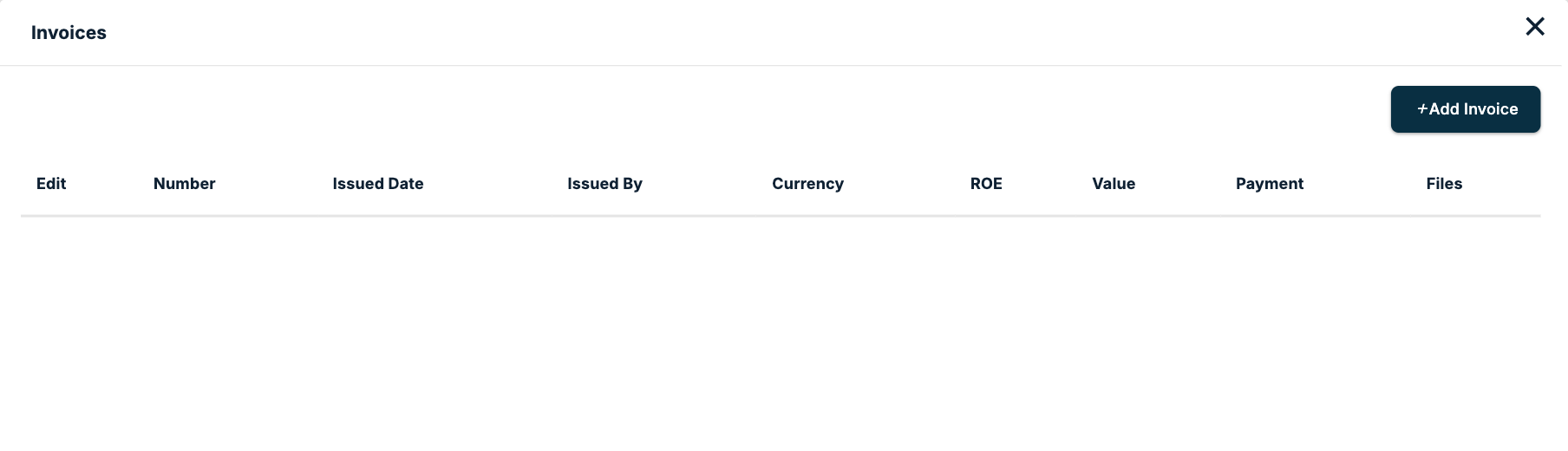
The + button beside Total Invoices has the tooltip "Define New" and works on a saved CS. It opens the Invoices dialog, with Add Invoice and the columns Edit, Number, Issued Date, Issued By, Currency, ROE, Value, Payment and Files. Close it with the X.
The same dialog opens from Invoices in the menu on the Process Steps tab. See How to issue a selling invoice from a shipment file.
Track the cargo
When a cargo query view is available, a globe icon beside Transaction Number opens it.
Partner Sender
| Field | What to enter |
|---|---|
| Customer | Your customer on the sending side. You can create or edit the partner from the field. |
| Contact | The customer's contact. |
| Customer Reference | The customer's own reference. |
| Shipper | The physical shipper. You can create or edit the partner from the field. |
| Sales Agent | The sales agent, with Define New and a copy-to-clipboard icon. |
Partner Receiver
| Field | What to enter |
|---|---|
| Customer | Your customer on the receiving side. |
| Contact | The customer's contact. |
| Customer Reference | The customer's own reference. |
| Forwarder | The forwarder on the receiving side. |
| Consignee | The physical consignee. |
| Notify | The notify party. |
| Carrier | The carrier, with a copy-to-clipboard icon and Edit. |
Customer is your contractual customer on each side; Shipper and Consignee are the physical cargo parties. They can be different companies. The two Customer Reference values appear on the Customer Shipments list as SENDER and RECEIVER.
Save your changes
Click Update to save and close the editor. The icon-only Apply Changes button sits beside it.
If something goes wrong
| You see | What to do |
|---|---|
| Pickup Service or Delivery Service has no options | Choose the Service Mix first. |
| Service Mix, Pickup Service or Delivery Service cannot be changed | They are locked once the CS is saved. |
| Business Unit cannot be changed | An approved invoice is bound to the CS. |
| A Confirmed date cannot be typed | Confirmed dates come from the SO. |
| The + beside Total Invoices is not available on a new CS | It works on a saved CS. Save the CS first. |
| A customs partner shows [NOT ACTIVE] | The partner is inactive. Choose an active one, or ask your Freightools administrator. |
Related articles
- Customer Shipment (CS) Tabs Overview in Freightools
- How to create a CS (customer shipment) in Freightools
- How to edit the routing of a Customer Shipment
- SO Dates, Stages & Tracking in Freightools
- How to Manage Number Ranges in Freightools
- How to set the type of a shipment partner
- How to Create and Manage Partners in Freightools (Master Data)