
Four tools help a team work together on shipment files: engagements (tasks assigned to a user and linked to a record), tags (labels on records), widget templates (saved grid layouts) and discussions (comments on a file). This article shows where each one lives and what its screens hold. The full guide to engagements is How to Use the Engagements Module; the full guide to saving grid layouts is Widget Templates in Freightools.
Before you start
- Tags and the engagement settings pages are under the Settings gear. Tags are set up by your Freightools administrator.
- An engagement is assigned to a user, so the person who carries it out needs a Freightools user.
Engagements: tasks assigned to a user
The engagements list
Go to Settings → Advanced → Assignments. The menu says Assignments, but the page, its button and its dialog are titled Engagements.
The toolbar holds New Engagement, Refresh, Column Picker and an Excel export ("Export the grid content to Excel file"). The filters are:
| Filter | Options |
|---|---|
| Created / Executed | Date ranges. |
| Type | General, Sales, Other, Documents. |
| Priority | Low, Medium, High, Extreme. |
| Status | New, Active, Resolved, Closed, Removed. |
| Origin | The kind of record the engagement belongs to. |
| Execution by / Verified By | A user. |
| Activity Type | Call, Meeting, Email. |
The columns include Title, Type, Priority, Status, Created, Expected, Estimated Time (Hours), Executed, Effort Time (Hours), Origin, Origin Reference, Entity View, Partners, Creator User, Activity Type and Description.
Create an engagement
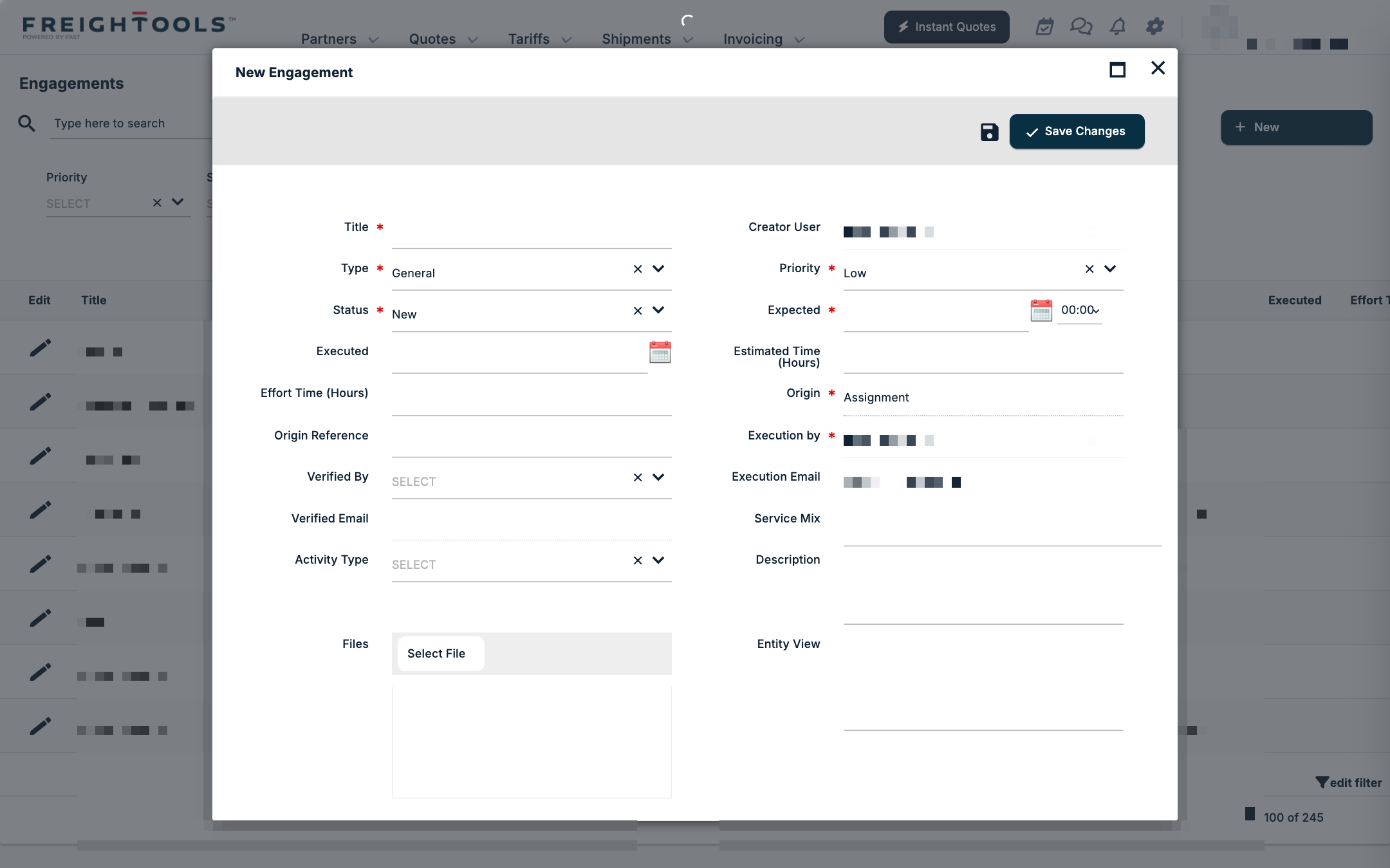
Click New Engagement. The dialog holds:
| Field | What it holds |
|---|---|
| Title (required) | A clear name for the task. |
| Creator User | You, by default. |
| Type (required) | General by default. |
| Priority (required) | Low by default. |
| Status (required) | New by default. |
| Expected (required) | The date and time the task is due. |
| Executed | The date the task was done. |
| Estimated Time (Hours) / Effort Time (Hours) | The hours planned and the hours spent. |
| Origin (required) | Assignment by default. |
| Origin Reference | The record the task relates to, such as a shipment number. |
| Execution by (required) | The user who does the task. You, by default. |
| Verified By | The user who checks the work. |
| Execution Email / Verified Email | Execution Email is filled in with the executor's email. |
| Service Mix | The service mix the task relates to. |
| Activity Type | Call, Meeting or Email. |
| Description | Free text. |
| Files | Click Select File to attach a document. |
The dialog also has an Entity View field.
Click Save Changes.
Engagements on a Shipping Order
On an open Shipping Order (SO), the right end of the first row of the summary strip carries two icons: a checklist icon that opens the Engagement dialog, and a chat icon that opens the Shipping Order Discussions dialog.
On the Customer Shipments list, Engagements is one of the fields you can filter on in Edit Filter. See How to use the Customer Shipments list.
Tags: labels on records
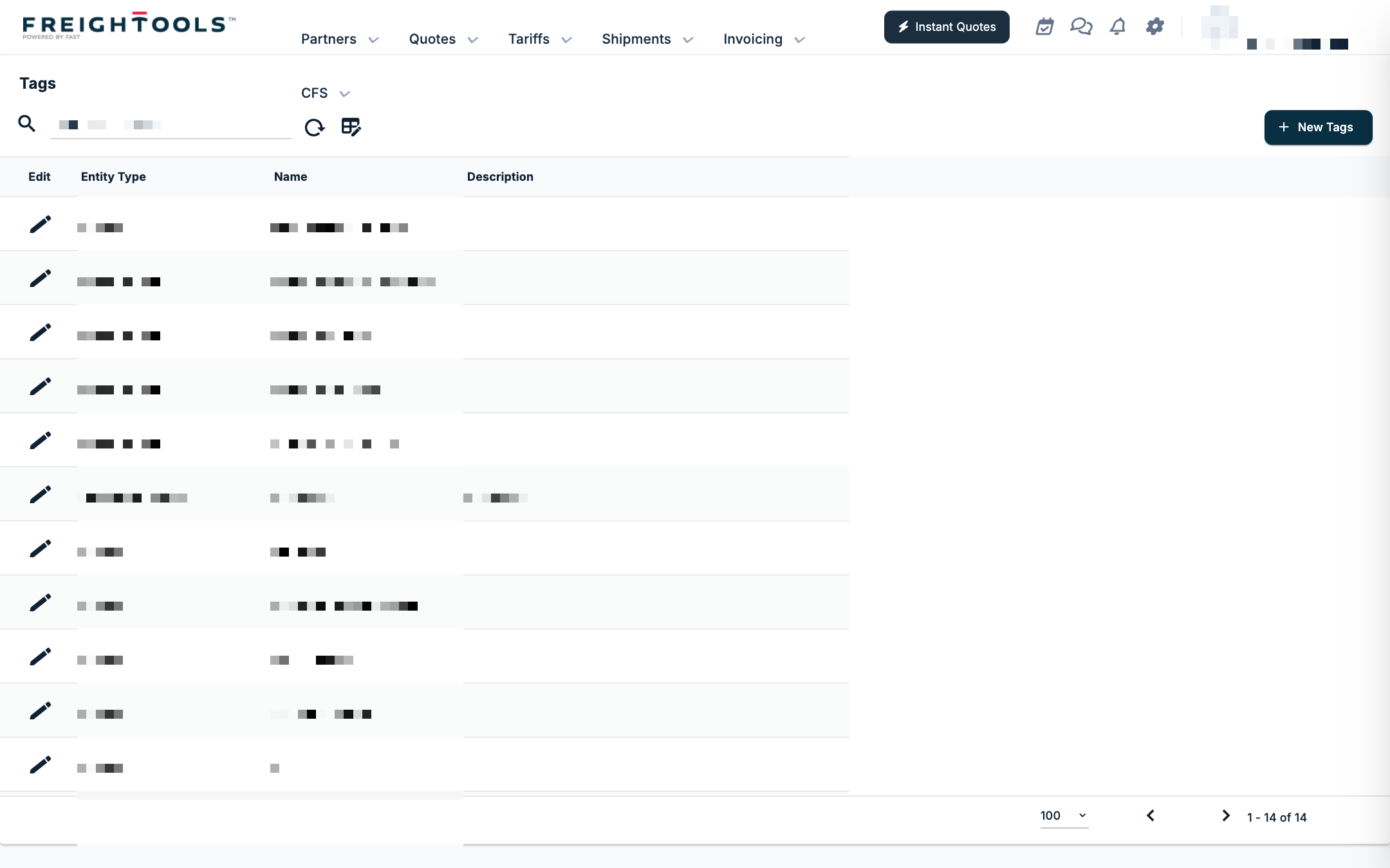
Go to Settings → Process Configuration → Tags. The columns are Edit, Entity Type, Name and Description.
To add a tag, click New Tags and fill in Name (required), Description and Entity Type (required). The entity type decides which kind of record the tag is for — for example SalesProposal, CustomerShipment, ShippingOrder or Invoice. An existing tag opens as Edit Tags with Update, Apply Changes and Delete.
On a Shipping Order, the Tags field is in the General section of Basic Information.
Widget templates: saved grid layouts
A widget template is a saved layout of a grid — its columns and filters — that you can switch back to. Templates are created from the grids themselves; see Widget Templates in Freightools.
Settings → Process Configuration → Widget Templates lists the saved templates. The page is headed Widget Preference Template, has no New button, and shows the columns Id, Name and Is Public. Open a template to change its Name (required) or tick Is Public, then click Update. Delete removes a template you no longer use.
Discussions: comments on a file
- On the Customer Shipments list, the Discussion column shows the number of comments with a message icon that opens Customer Shipment Discussions, and Last Discussion shows the latest one.
- On the Shipping Orders list, Last Discussion shows the latest comment, with the full text as a tooltip. On an open SO, the chat icon in the summary strip opens Shipping Order Discussions.
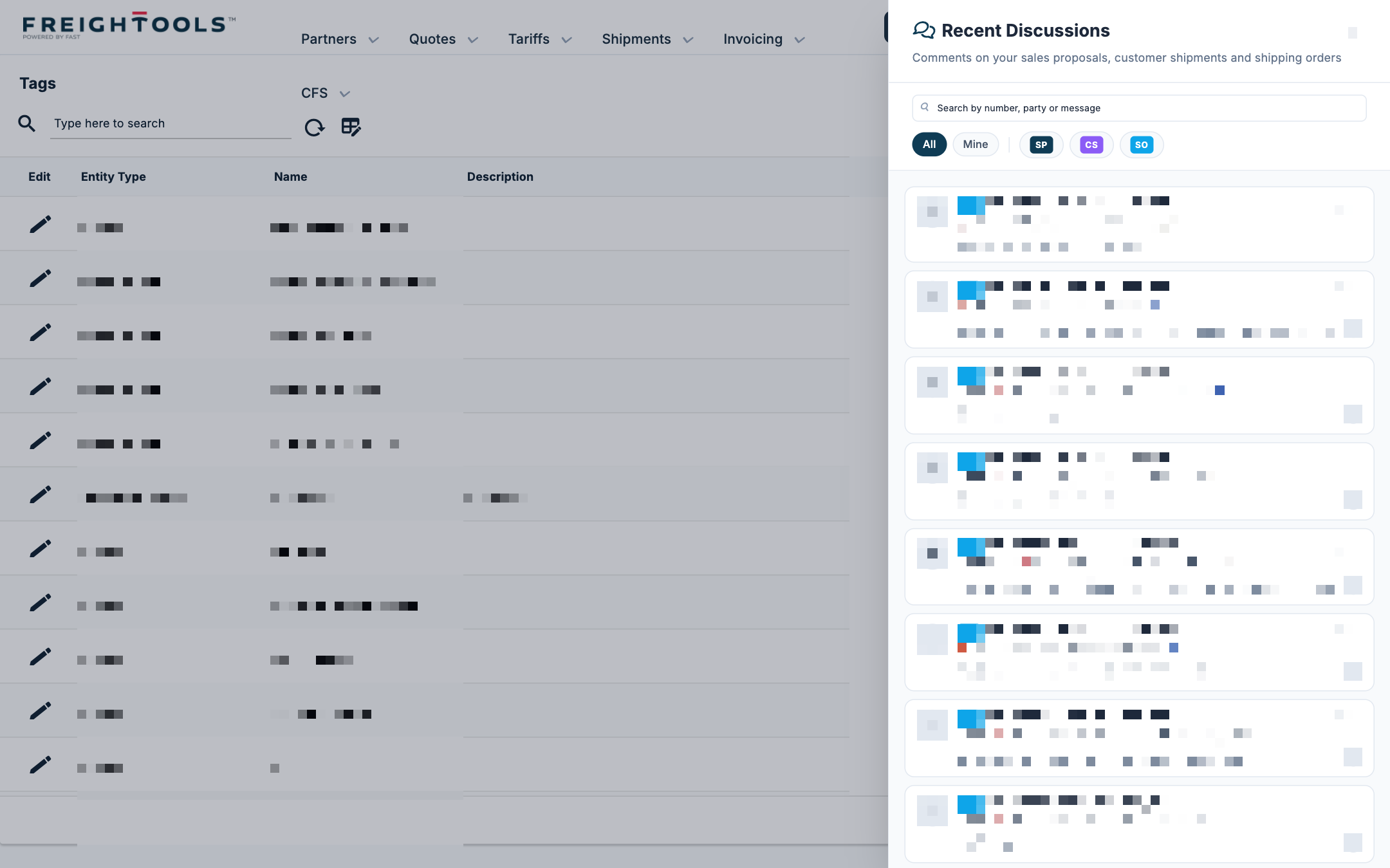
- Recent Discussions — the comments icon in the top bar opens a panel titled "Recent Discussions — Comments on your sales proposals, customer shipments and shipping orders". Its tabs are All, Mine, SP (sales proposals), CS (customer shipments) and SO (shipping orders), with a search box "Search by number, party or message". Each item shows the record's number, the route and the latest comment with a count of comments. To comment, type in Write a comment... and click Send; Enter sends, Shift+Enter starts a new line.
To be told when a discussion starts, your Freightools administrator can set up the alert type New Recent Discussion Created; for engagements, New Assignment Created. See Alerts in Freightools.