
Editing a customer opens the same form you filled in when you created it, with a summary header
across the top so you can be sure you have the right record.
Open the customer
- Open Partners → Customers.
- Find the customer. Search by name, code or reference above the grid, or use the quick filters
on the left. - Click the edit icon at the start of the row.
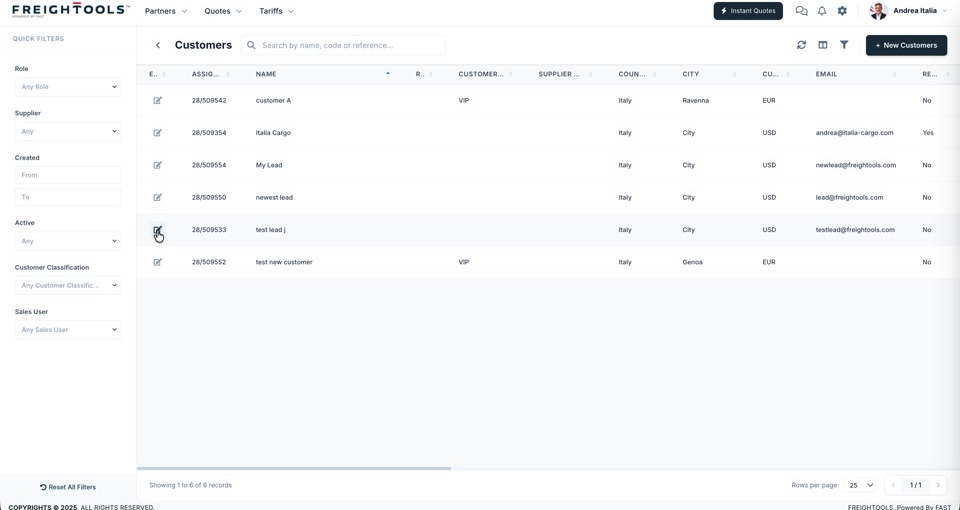
Check the header before you change anything
Edit Customer opens with a summary band across the top: the customer's name and city, its
Contact phone and email, its Details, and its Partner Types — which reads
Customer on a customer record.
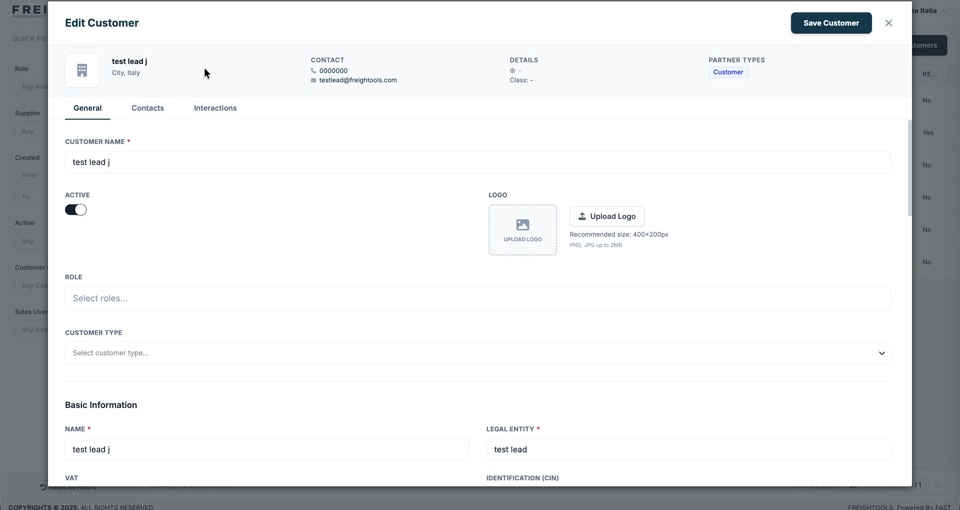
Partner Types is the quickest way to see whether this company is only a customer, or is also
a supplier or shipment partner.
Make your changes
| Tab | What you change there |
|---|---|
| General | Name, active status, logo, role, customer type, and the Basic Information and Location fields. |
| Contacts | The people at this customer. |
| Interactions | The interaction history for this customer. |
Click Save Customer when you are done, or × to close without saving.
Note: Legal Entity is the name that belongs on an invoice, and Currency is what this
customer is quoted and invoiced in, so both feed the quotations and invoices raised from here on.
If this customer already has documents issued, check with your Freightools contact before you
change either.