
Four lists under Settings → Sales Configuration hold the values your team picks when it classifies customers and records competitors and win/loss reasons: Partner Classification, Competitors, Competitor Types and Win Loss Reasons. This article covers where each list is and what each New dialog asks for. These are company-level lists, set up by your Freightools administrator.
To open them, click the gear (Settings) in the top bar and go to Configuration → Sales Configuration.
Every list has Refresh, Column Picker and a search box. Each New dialog has Save Changes and Apply Changes.
Partner classifications
A partner classification is a customer class — for example a tier such as gold, silver or bronze.
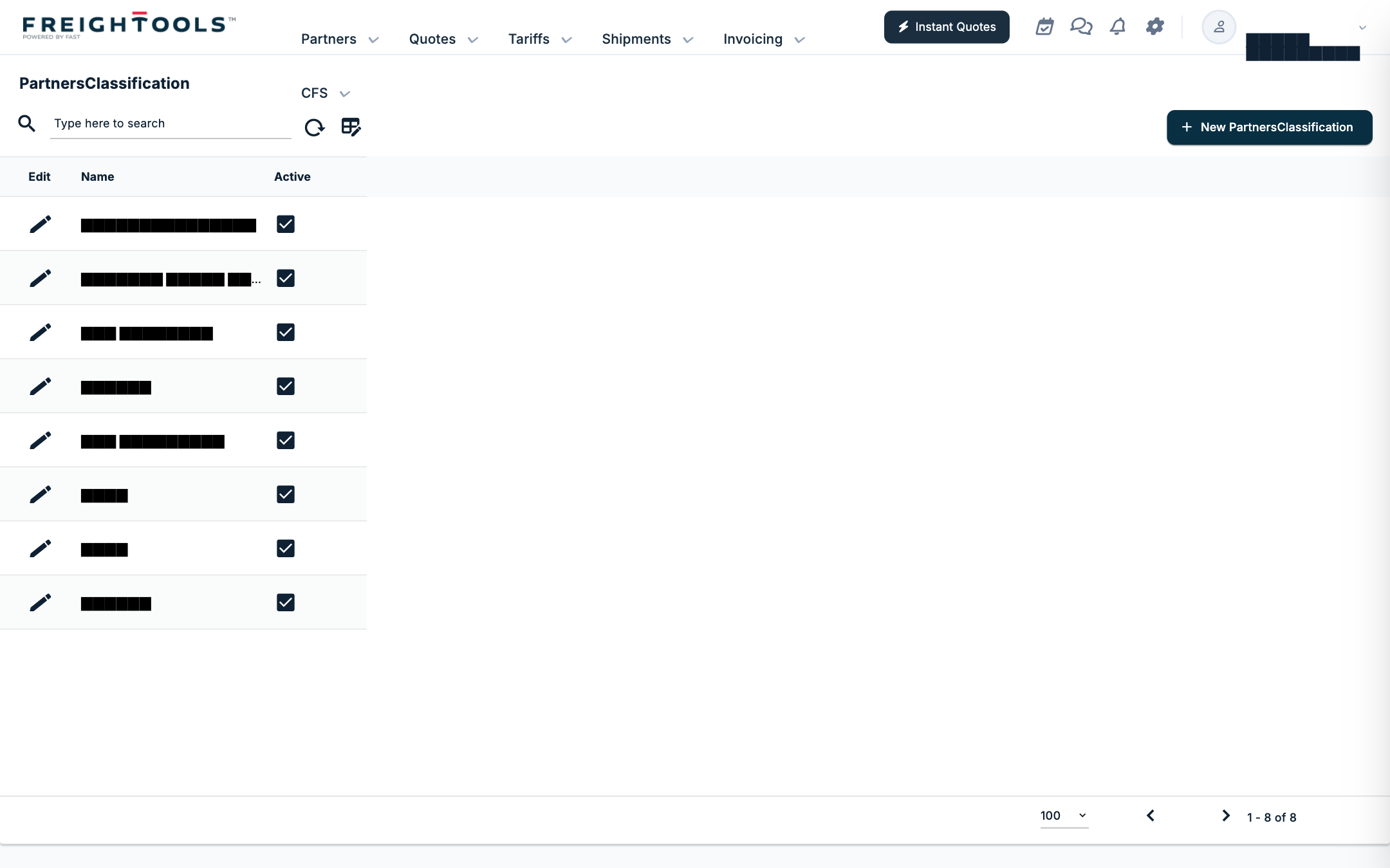
- Go to Settings → Sales Configuration → Partner Classification. The page is titled PartnersClassification, with the columns Edit, Name and Active.
- Click New PartnersClassification.
- Enter a Name (required). Active is ticked.
- Click Save Changes.
To change a classification, click the pencil in Edit; the dialog has Update, Apply Changes and Delete.
Where classifications are used
| Where | Label on screen |
|---|---|
| A customer's partner record, General tab, Basic Info (shown when Customer is ticked) | Customer Classification |
| The Partners list — filter and column | Customer Classification (filter), Customer Class (column) |
| Selling agreements — filter | Classification |
| Printout templates — Business Rules | Partner Class |
| VAT code rules | Customers Classifications |
| Customer Portal settings — Public Search & RFQ Rules | Public RFQ Customer Class |
On printout templates, the screen notes: "Partner Class and Is Buying are relevant only for Sales Proposal entity type. They will be ignored for other entity types."
Competitor types
Create competitor types before competitors: a competitor's Competitor Type is picked from this list, and an empty list leaves nothing to pick.
- Go to Settings → Sales Configuration → Competitor Types. The columns are Edit and Name.
- Click New Competitor Type.
- Enter a Name (required).
- Click Save Changes.
Competitors
- Go to Settings → Sales Configuration → Competitors. The columns are Edit, Name, Country, Competitor Type and Active.
- Click New Competitor.
- Fill in the fields:
| Field | What to enter |
|---|---|
| Active | Ticked by default. |
| Name | The competitor's name. Required. |
| Country | The competitor's country. Required. |
| Competitor Type | A type from Competitor Types. Required. |
- Click Save Changes.
Win/loss reasons
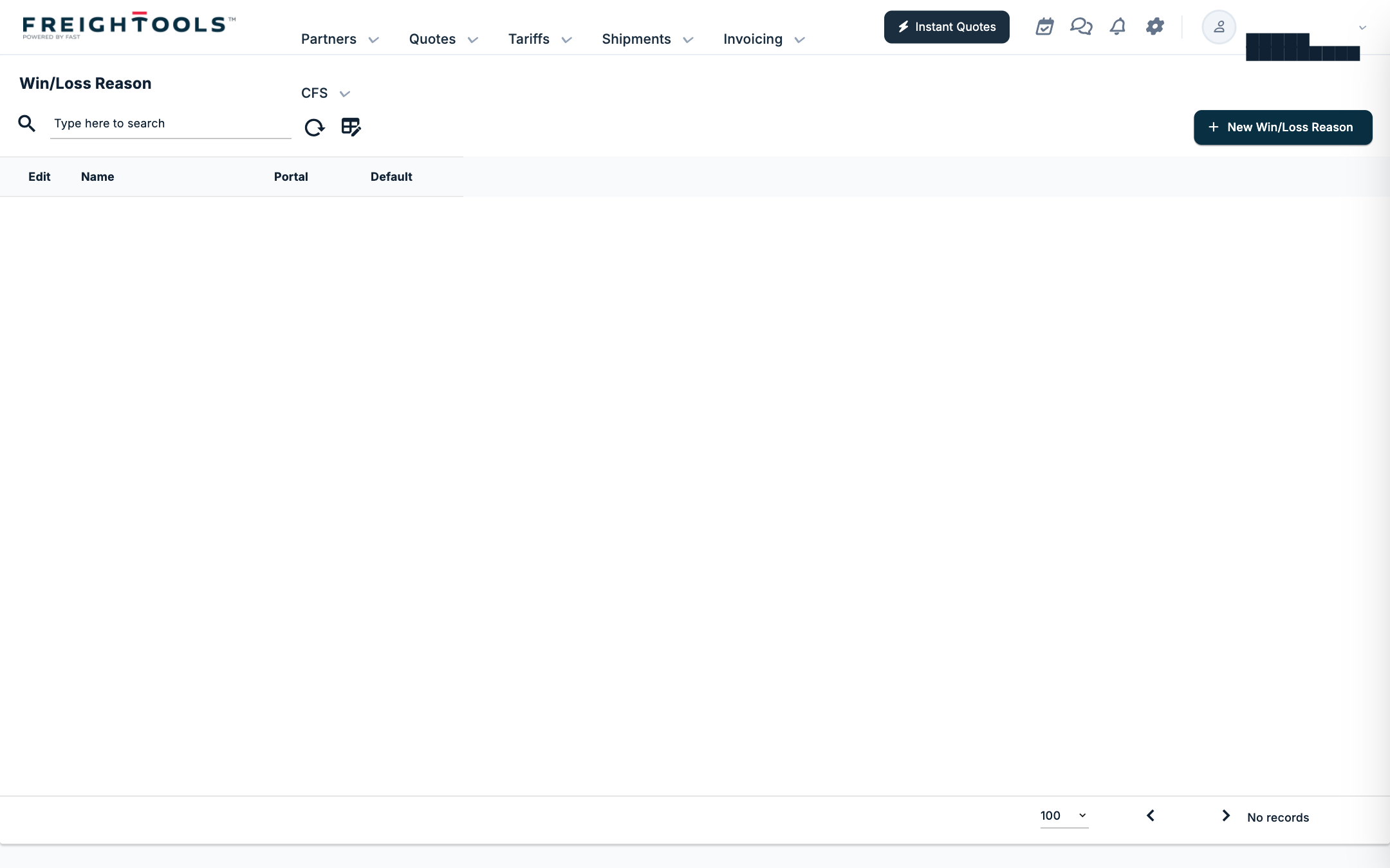
- Go to Settings → Sales Configuration → Win Loss Reasons. The page is titled Win/Loss Reason, with the columns Edit, Name, Portal and Default.
- Click New Win/Loss Reason.
- Fill in the fields:
| Field | What it is |
|---|---|
| Name | The reason, as your team will see it. Required. |
| Portal | A checkbox, off by default. |
| Default | A checkbox, off by default. |
| High Price Reason | A checkbox, off by default. |
- Click Save Changes.
If something goes wrong
- Competitor Type shows "No matches found". No competitor types exist yet. Create one under Competitor Types first.
- A classification is missing from the Customer Classification list on a partner. Check that the classification exists under Partner Classification.