
After your personal mailbox is connected, Freightools provides an email client inside the application so you can work with that mailbox without leaving Freightools.
Before you start
Your personal mailbox must already be connected through Profile → Security → Email Connection. See /help/how-to-connect-your-email-to-freightools.
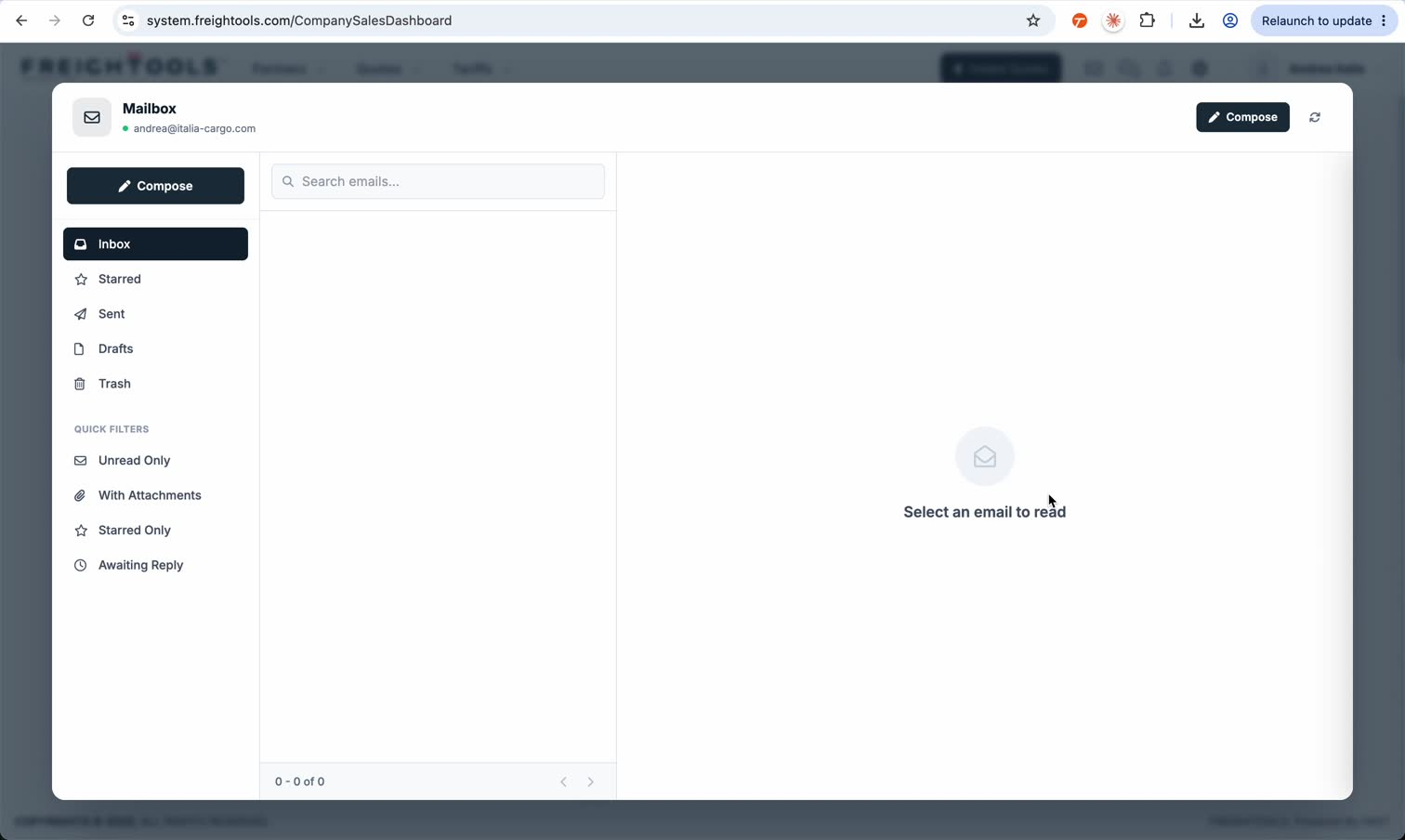
Open the mailbox
- Click the envelope icon in the Freightools header.
- The Mailbox window opens and shows the connected email address at the top.
- Use Inbox, Starred, Sent, Drafts or Trash to move between mailbox folders.
- Use Search emails... to search the mailbox.
- Use the quick filters Unread Only, With Attachments, Starred Only or Awaiting Reply when needed.
- Click Compose to start a new message.
Read and act on an email
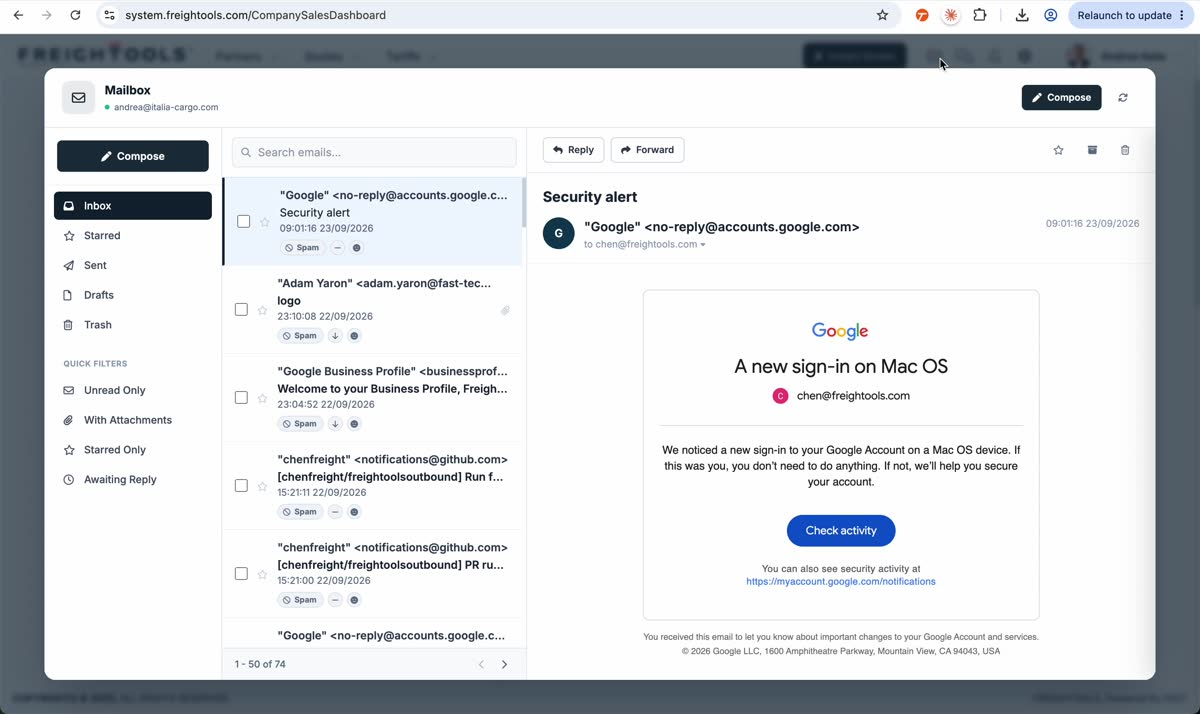
- Select a message from the email list.
- Read the full message in the right-hand panel.
- Use Reply or Forward from the message toolbar when needed.
- AI-generated email signals can appear directly on the email row. Hovering the AI analysis control can open the AI Summary panel.
Review sent quotation email
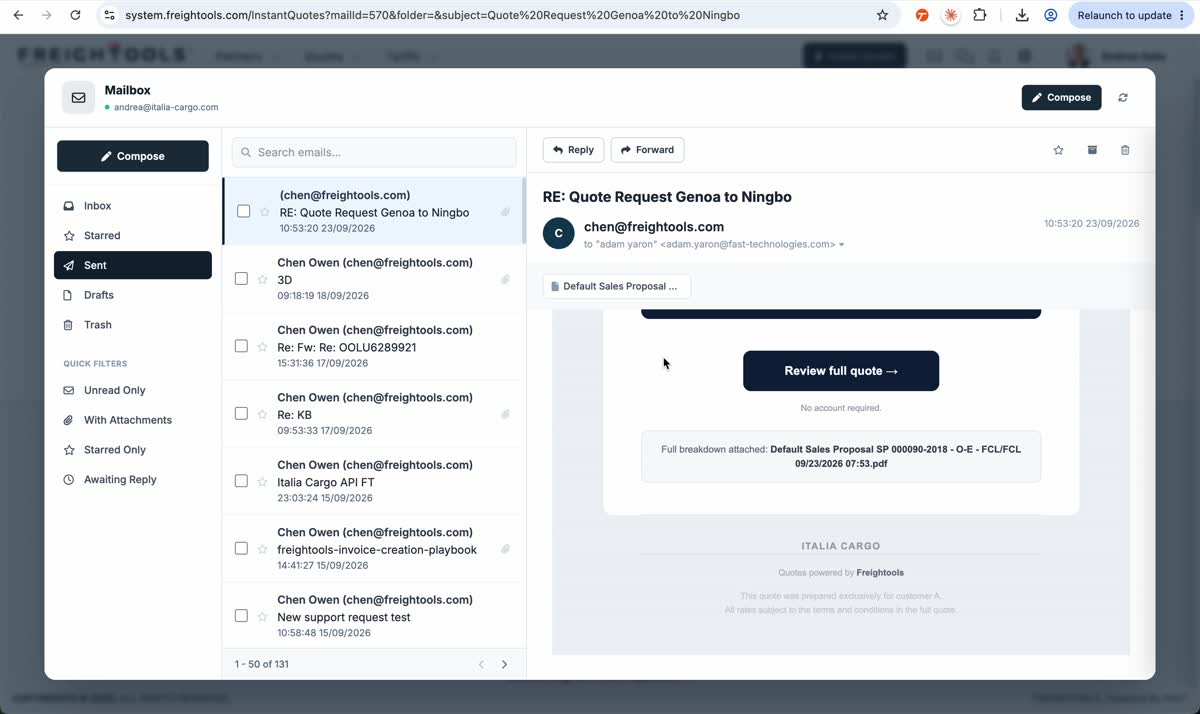
When a quotation is sent from the recorded quote workflow, the sent message can be reviewed from Sent in the same personal mailbox. The recorded example shows the quotation reply with the proposal attachment and Review full quote link inside the message.
For the AI classification displayed on incoming emails, see /help/how-ai-email-intelligence-classifies-your-email.