
When AI Email Intelligence recognizes an email as a quotation request, Freightools can move the request from the personal mailbox into Instant Quote so the shipment data does not need to be typed again from scratch.
Before you start
- Your personal mailbox must be connected.
- The incoming email must be identified as a quotation request.
- For the customer to be matched automatically, the sender email address must belong to a Freightools customer or to a contact on that customer.
Analyze the quotation request
- Open the personal Mailbox.
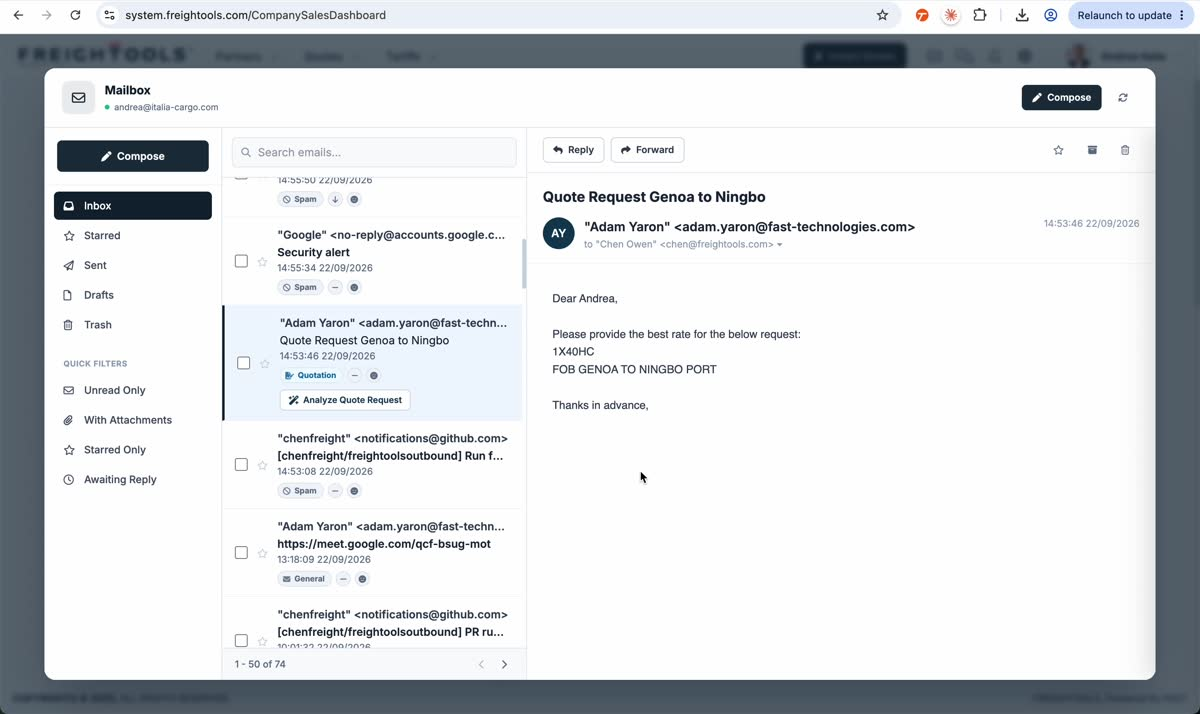
- Select the email carrying the Quotation badge.
- Review the email content and the AI Summary if needed.
- Click Analyze Quote Request.
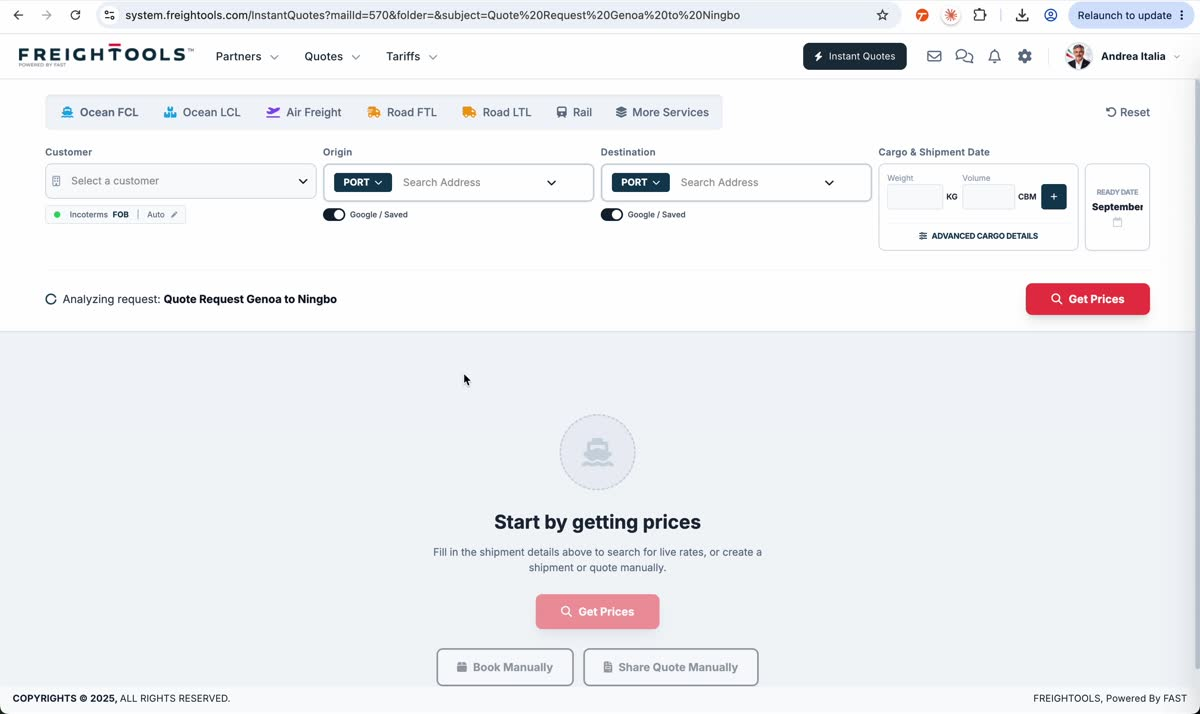
- Freightools opens Instant Quote and shows Analyzing request: followed by the email subject while it reads the request.
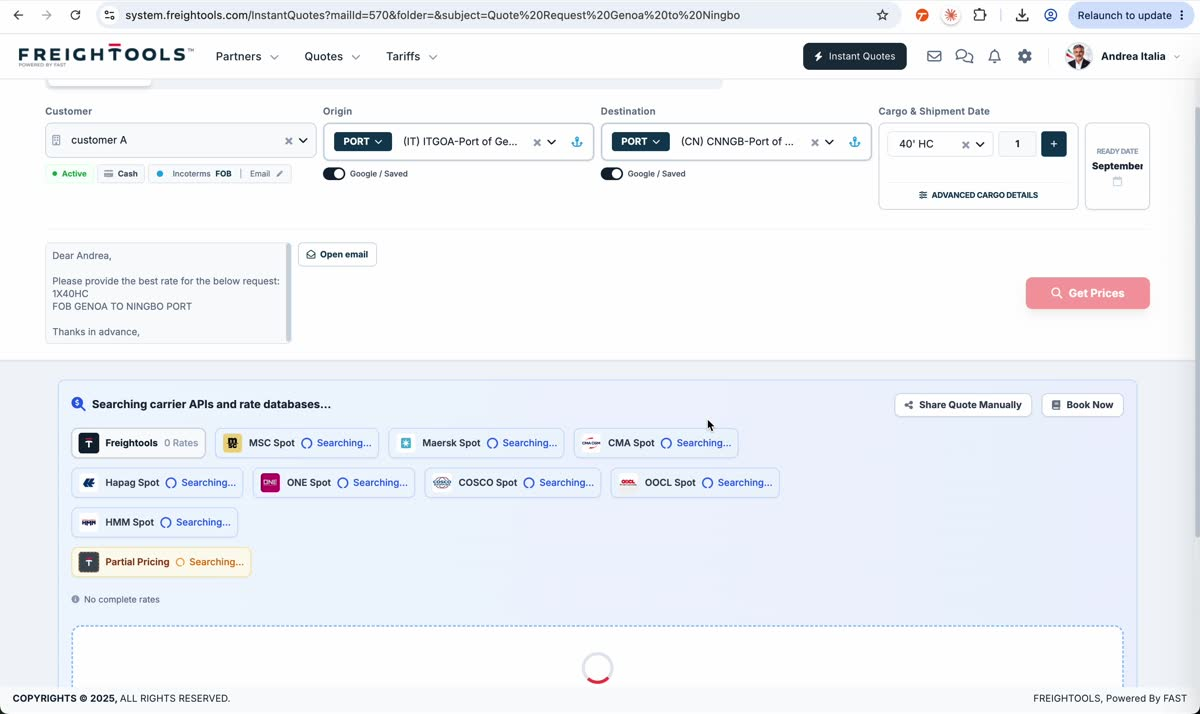
- In the successful recorded example, Freightools fills the Customer, Origin, Destination, equipment type and quantity from the request. The source email text remains visible below the search fields with an Open email button.
- The recorded flow then proceeds to search the available carrier APIs and rate databases.
Continue with /help/how-to-compare-quotation-options-before-sharing once the Instant Quote results are available.
If something goes wrong
If Freightools cannot match the sender to a customer, it does not complete the customer match. The recorded error instructs the user to add the sender as a partner or as a contact of an existing partner and then analyze the request again.
See /help/how-to-fix-partner-not-found-when-analyzing-a-quotation-request.